Showing posts with label VSTS. Show all posts

Tuesday, February 14, 2023

How to Integrate SonarQube with Azure DevOps | SonarQube Integration with Azure DevOps | Perform Code Scan using SonarQube In Azure Pipelines

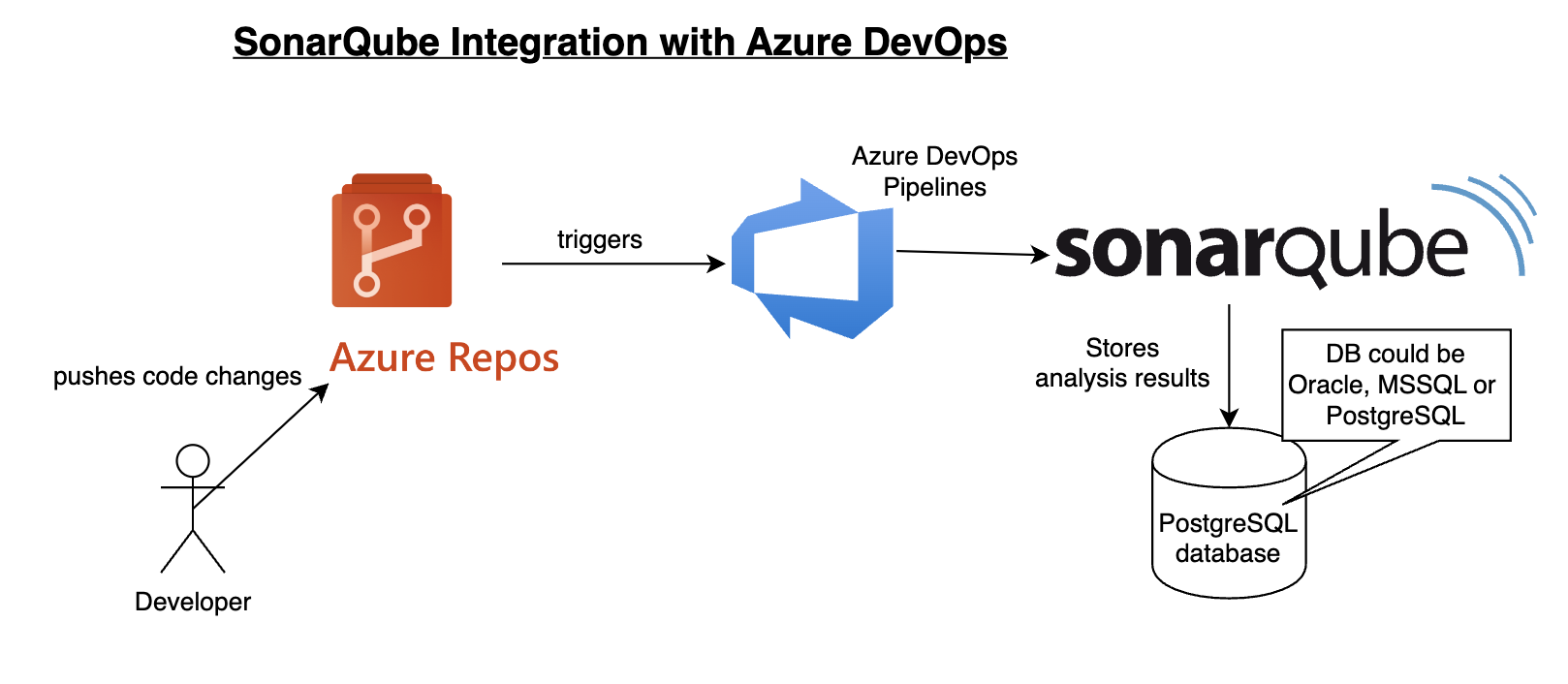
Please find steps below for integrating SonarQube with Azure DevOps, Previously known as Visual Studio Team Services:

Pre-requisites:

https://marketplace.visualstudio.com/acquisition?itemName=SonarSource.sonarqube


Once added SonarQube plug-in, click on proceed to Organization..


Watch Steps in YouTube channel:

How to integrate SonarQube with Azure DevOps:

Create Token in SonarQube to authenticate with Azure DevOps
You need to login to SonarQube using your admin password. admin/admin123 and click on Admin on your top side.
Click on My Account, Security. 
Under Tokens, Give some value for token name and choose Global analysis token, click on generate Tokens. Copy the token value generated.


Create Service Connections in Azure DevOps 

Login to Azure DevOps. Select your project dashboard.


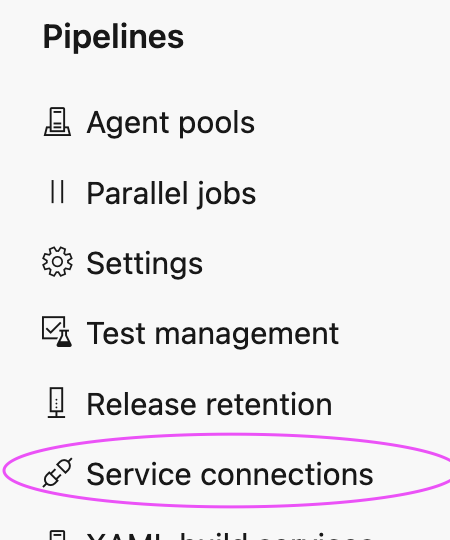
Click on Project settings --> Service connections


click on New service connection

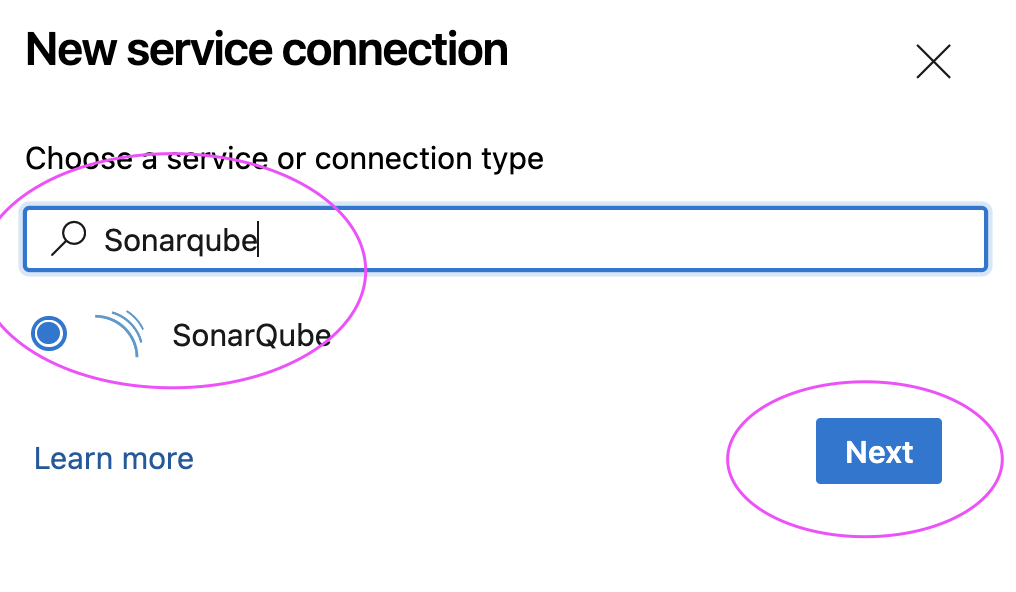
Type SonarQube and Click Next

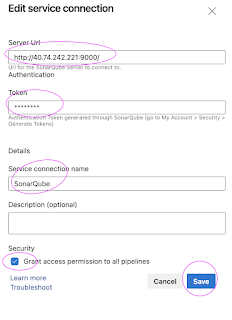
Enter SonarQube server url and enter Token created 
Give name for service connection and select Grant access permission to all pipelines.
Click on Save.

Create a Pipeline in Azure DevOps

1. Login to Azure DevOps. Go to Azure Pipelines. Click on create a new pipeline, use classic editor 
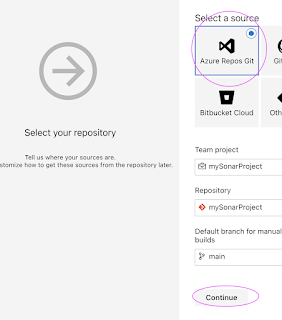
Select your Azure Repos
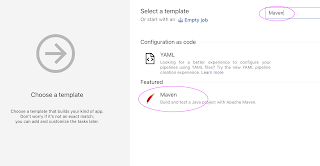
Type Maven and choose maven template as shown below


2. Click on Add tasks
3. Type Sonar


4. Add Prepare Analysis on SonarQube task
5. move up this task to all the way up.
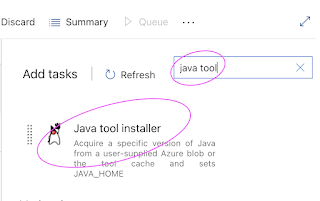
And also search for Java tool installer task and add it


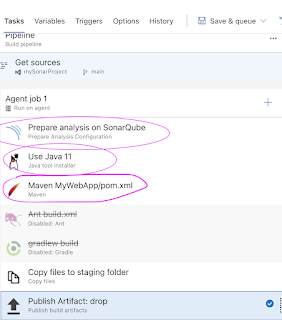
It should be like shown below:


6. Click on prepare sonar analysis configuration task

select Integrate with Maven or Gradle option

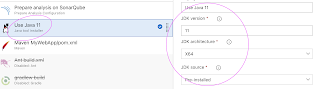
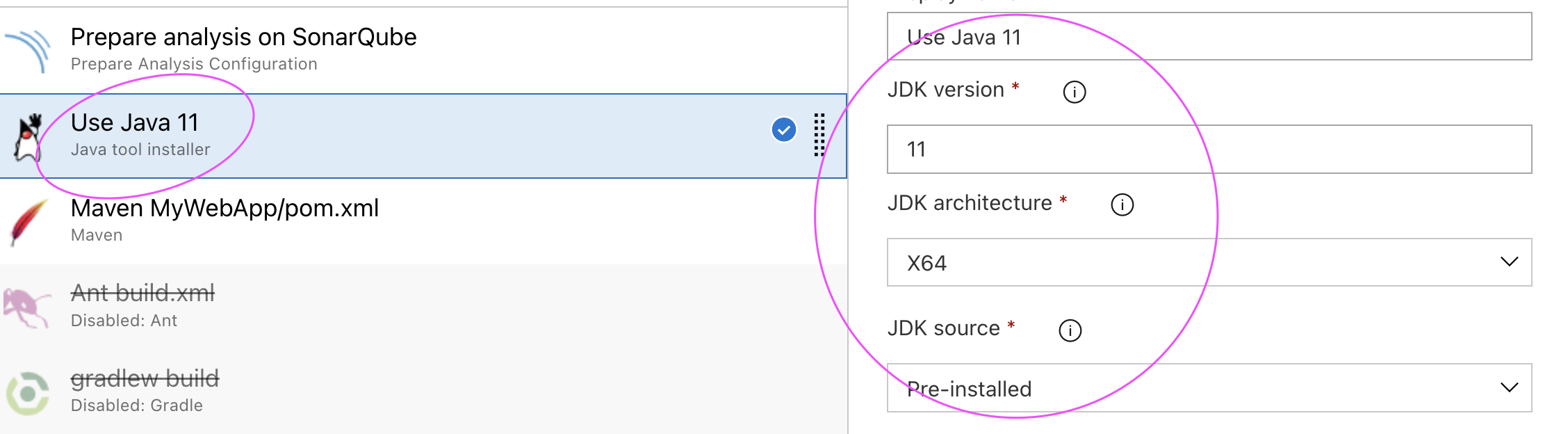
7.Click on Java tool installer and change to 11 instead of 8


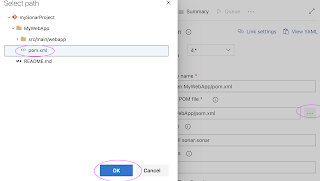
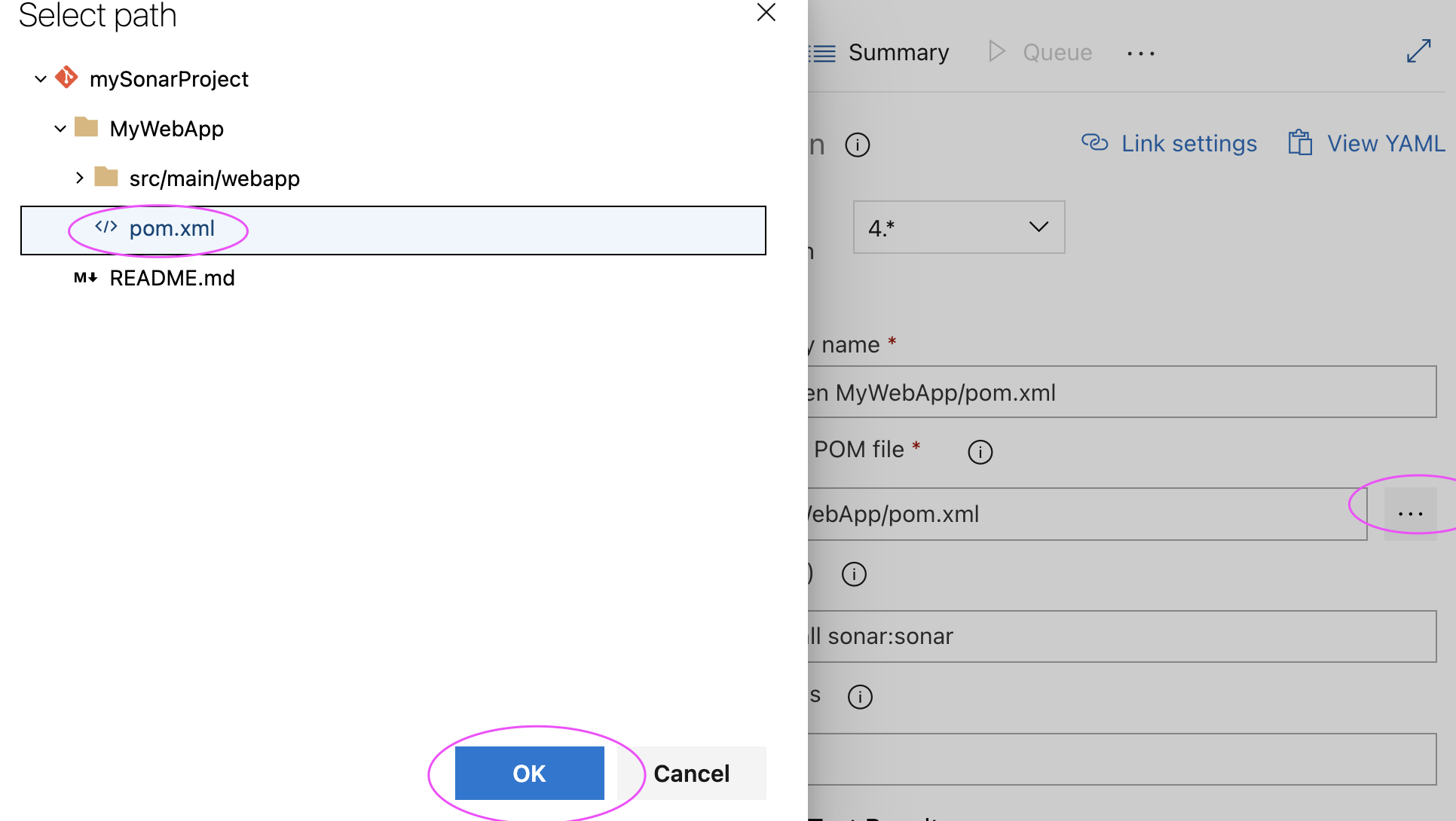
8. Edit maven task & add install sonar:sonar and also select the path of pom.xml under MyWebApp/pom.xml


Click on Save and Queue to kick start build.
9. Now login to SonarQube dashboard, click on Projects


Thursday, November 19, 2020

Slack Azure DevOps Integration | How to Integrate Slack with Azure DevOps | Send push notifications from Azure pipelines to Slack

Slack is popular collaboration tool used at work by many companies. Slack can be integrated with CI tools such as Jenkins, Azure DevOps(VSTS). We will see how to integrate with Azure Build pipelines. 

Pre-requisites:
1. Azure pipelines setup
2. Slack channel setup
 
Azure DevOps & Slack integration steps
 
1. Go to slack.com and sign in to workspace.
2. Go to channel where you would like to receive push notification from Azure DevOps. Click on more and Add apps


3. Add Visual Studio Team Services App

4. Add Configuration

5.  And then select channel to post notification and add the channel

6. In Azure DevOps Dashboard, click on Project settings.
7. Click on Service Hooks tab and then click create subscriptions button to add a new service hook.


8. Select Slack from the list of services, and press the Next button.


9. On the Trigger screen, choose the event that you’d like to trigger the notification, and add any filters. Press the Next button to continue.


10. On the Action screen, add the URL as the Slack Webhook URL and press Finish when you are done.


Now whenever Azure pipelines runs any builds, it will send push notifications to the Slack channel. 

Please watch the above steps in YouTube channel:

Monday, February 11, 2019

Build Pipelines in Azure DevOps - How to build pipelines for Java WebApp and migrate to Azure

Building pipelines in Azure DevOps is really easy, you can migrate your application code from any where into Azure using Azure pipelines.

Pre-requisites:

You need to create an account by clicking on below URL:
https://azure.microsoft.com/en-us/services/devops/
  

Once you sign in, you need to create a project.

Create App service on Azure portal
What is App service?

Azure App Service enables you to build and host web apps, mobile back ends, and RESTful APIs in the programming language of your choice without managing infrastructure. It offers auto-scaling and high availability, supports both Windows and Linux, and enables automated deployments from GitHub, Azure DevOps, or any Git repo.

How to create an app service in Azure Portal?

1. Go to Azure portal - https://portal.azure.com/

2. Click on Create App services, create app service.

3. Enter WebApp details
Select subscription as free trial.
Resource group as some name
Name should be unique
Publish - Code
Run time stack --> Choose Tomcat 8.5 under Java 8
Operation System as Linux
Region as Central


4. Select App service plan as it is shown
Select sku and size
Choose Dev/Test and select B1 and click apply

Click on Review and Create and click on Create

Now this should have created a WebApp
Now go to App services, Click on WebApp, click on URL and make sure WebApp is up and running.

Steps for creating pipelines in Azure Devops
1. Click on Pipelines, Builds.


2. Click on New pipeline

3. Select source repository - it could be your Bitbucket or Azure Repo and click continue

4. If your application is Java stack, type Java and Choose Azure WebApp for Java


5. Click on pipeline name and re-name per your naming standard

6. Modify maven goal as clean install


7. Click on Stop Azure WebApp step, Enter Azure WebApp details - where  you would like to deploy your app in Azure.

8. Do the same in Deploy Azure WebApp & Start Azure WebApp steps.

9. Now click on Save and Queue.

10. This should kick start build,


Wednesday, September 12, 2018

How to integrate SonarQube in Azure DevOps - Setup SonarQube code analysis in VSTS or Azure DevOps

Please find steps below for integrating SonarQube with Azure DevOps or Visual Studio Team Services:


Pre-requisites:
1. Make sure you install SonarQube plug-in/Add-on in VSTS (Azure DevOps) using below URL:
https://marketplace.visualstudio.com/acquisition?itemName=SonarSource.sonarqube


Once added SonarQube plug-in, click on proceed to Organization..


Steps:
1. Login to Azure DevOps. Go to Azure Pipelines. Edit your pipeline


2. Click on Add tasks
3. Enter Sonar


4. Add Prepare Analysis configuration
5. move up this task.
It should be like shown below:

6. Edit prepare sonar analysis configuration task
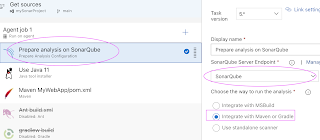


7. Click on New service connection

 8. Enter name as mySonarServer and put in SonarQube url including port number and use the token generated

9. Choose that name and select Integrate with Maven or Gradle


10. Edit maven task and add clean install sonar:sonar


11. Run the build, it should integrate with Sonar and should do code analysis.