Showing posts with label SonarQube. Show all posts

Thursday, March 14, 2024

How to Create Quality Gate in SonarQube and integrate with GitHub Actions | SonarQube Integration with GitHub Actions | Automate Code Scan using SonarQube In GitHub Actions and Force build to Fail or Pass


Pre-requisites:

How to Create Quality gate in SonarQube and integrate with GitHub Actions?

Make sure SonarQube is up and running and integrated with GitHub Actions. Please click here if you would like to setup SonarQube and integrate with GitHub Actions.

We will be executing below steps:
  • Login to SonarQube
  • Create Quality Gate in SonarQube
  • Add conditions in Quality Gate
  • Make quality gate as Default
  • Create GitHub Actions CICD workflow yaml
  • Add tasks for Maven build and Sonar Scan
  • Add tasks for integrating Quality gate 
  • pass/fail the builds in SonarQube

What is Quality gate?

In SonarQube a quality gate is a set of conditions that must be met in order for a project to be marked as passed.

Create Quality Gate

Login to SonarQube, Click on Quality gate, enter some name

Once you create the quality gate. Click on Add condition. 

Select new issues from the drop down and enter 2 


Select new bugs from the drop down and enter 1 as error


Setup a Default Gate


Create GitHub Actions CICD workflow yaml:

Go to GitHub repo where your Java project is, create a new file:

.github/workflows/cicd.yml


The below file have four steps(tasks) 
    - Checkout
    - Install Java on runner
    - Build using Maven
    - run Sonar Scan (this task need to have projectKey defined, otherwise build will fail)
    - run quality gate check
    - pass/fail the build

Copy the the whole yellow color marked content from below:

name: CI/CD workflow for Maven Build, Sonar Code scan and Quality gate check
on:
  push:
    branches:
      - main
  workflow_dispatch:
jobs:
  build:
    runs-on: ubuntu-latest
    steps:
    - name: Checkout code
      uses: actions/checkout@v3
    - name: Set up JDK 11
      uses: actions/setup-java@v2
      with:
        distribution: 'adopt'
        java-version: '11'
    - name: Build with Maven
      run: mvn install -f MyWebApp/pom.xml
    - name: SonarQube Scan
      uses: sonarsource/sonarqube-scan-action@master
      with:
        projectBaseDir: .
        args: >
          -Dsonar.organization=my-org
          -Dsonar.projectKey=my-Java-web-app
      env:
        SONAR_TOKEN: ${{ secrets.SONAR_TOKEN }}
        SONAR_HOST_URL: ${{ secrets.SONAR_HOST_URL }}
    # Check the Quality Gate status.
    - name: SonarQube Quality Gate check
      id: sonarqube-quality-gate-check
      uses: sonarsource/sonarqube-quality-gate-action@master
      # Force to fail step after specific time.
      timeout-minutes: 5
      env:
       SONAR_TOKEN: ${{ secrets.SONAR_TOKEN }}
       SONAR_HOST_URL: ${{ secrets.SONAR_HOST_URL }} #OPTIONAL
    # Show the output from the Quality Gate.
    # The possible outputs of the `quality-gate-status` variable are `PASSED`, `WARN` or `FAILED`.
    - name: "Here is SonarQube Quality Gate Status value.."
      run: echo "The Quality Gate status is ${{ steps.sonarqube-quality-gate-check.outputs.quality-gate-status }}"


Commit the file.

As soon as you commit, build will run immediately in GitHub Actions. 
Now you can see the output of build in Actions tab.


Now login to SonarQube to see the Scan report


If your code have any defects, you can see some build fails.

SonarQube Quality gate failed:

Watch Steps in YouTube channel:

Monday, February 26, 2024

How to integrate SonarQube with GitHub Actions | SonarQube Integration with GitHub Actions| Automate Code Scan using SonarQube In GitHub Actions

 Please find steps for integrating SonarQube with GitHub Actions


Pre-requisites:

How to integrate SonarQube with GitHub Actions:
We will be following below steps:
  • Create Token in SonarQube to authenticate with GitHub Actions
  • Add Sonar Token, SonarQube URL as Secrets in GitHub Actions
  • Create GitHub Actions CICD workflow yaml
  • Add tasks for Maven build and Sonar Scan
  • Run the workflow in GitHub hosted runner(Ubuntu)
  • Verify scan report in SonarQube

Create Token in SonarQube to authenticate with GitHub Actions
You need to login to SonarQube using your admin password and click on Admin on your top side.
Click on My Account, Security. 
Under Tokens, Give some value for token name and choose global analysis token, click on generate Tokens. Copy the token value generated.


Add Sonar Token and Sonar Host URLs as Secret in GitHub Actions
Go to your GitHub Repo --> Settings --> 

Click on Secrets and Variables under Security in left nav 
Click new Repository Secret


Add another variable for storing Sonar token


Create GitHub Actions CICD workflow yaml:

Go to GitHub repo where your Java project is, create a new file:

.github/workflows/cicd.yml


The below file have four steps(tasks) 
    - Checkout
    - Install Java on runner
    - Build using Maven
    - run Sonar Scan (this task need to have projectKey defined, otherwise build will fail)

Copy the content from below:

name: CI/CD workflow for Maven Build and Sonar Code scan
on:
  push:
    branches:
      - main
  workflow_dispatch:
jobs:
  build:
    runs-on: ubuntu-latest
    steps:
    - name: Checkout code
      uses: actions/checkout@v2
    - name: Set up JDK 11
      uses: actions/setup-java@v2
      with:
        distribution: 'adopt'
        java-version: '11'
    - name: Build with Maven
      run: mvn clean install -f MyWebApp/pom.xml
    - name: SonarQube Scan
      uses: sonarsource/sonarqube-scan-action@v1
      with:
        projectBaseDir: .
        args: >
          -Dsonar.organization=my-org
          -Dsonar.projectKey=my-Java-web-app
      env:
        SONAR_TOKEN: ${{ secrets.SONAR_TOKEN }}
        SONAR_HOST_URL: ${{ secrets.SONAR_HOST_URL }}

Commit the file.

As soon as you commit, build will run immediately in GitHub Actions. 
Now you can see the output of build in Actions tab.


Now login to SonarQube to see the Scan report


Notes:
You can also refer the documentation below from below websites.


Watch steps in YouTube channel: 

Wednesday, April 5, 2023

SonarQube Server Cannot be reached Error Resolution | SonarQube Troubleshooting | Fix for max virtual memory areas vm.max_map_count [65530] is too low

 How to Resolve SonarQube Server cannot be reached Error?

Pre-requisites:

refer this page for pre-requisites to install SonarQube


Resolution:

Make sure EC2 instance or server where you are installing SonarQube has enough virtual memory and open file limits for  Linux OS.

How to change default value for vm.max_map_count temporarily
sudo sysctl vm.max_map_count=262144
sudo sysctl fs.file-max=65536
The above command will load the max_map_count values and open file limits till the next system restart.

How to update vm.max_map_count directly in sysctl.conf permanently
Login to instance where you will be installing SonarQube, perform the below command to configure virtual memory permanently for SonarQube to function:
sudo vi /etc/sysctl.conf

Add the following lines to the bottom of that file:

vm.max_map_count=262144
fs.file-max=65536

To make sure changes are getting into effect:
sudo sysctl -p

Make sure SonarQube is up and running by checking the logs
sudo docker-compose logs --follow


Once you see the message, that's it. SonarQube have been configured successfully. press control C and enter.

Watch Steps in YouTube channel: 

Wednesday, March 1, 2023

SonarQube server can not be reached Error | Troubleshoot SonarQube Jenkins or Azure DevOps Integration

 Let's see how to resolve SonarQube server can not be reached error.

Root cause and Fix:

When ever you stop EC2 instance and re-start, public DNS name always changes. So you will have to change it every time you restart. 

You need to re-enter new Sonarqube server URL under Jenkins --> Manage Jenkins --> Configure system. scroll down and under sonarQube configuration 


enter updated SonarQube URL. no need to create token again, old token is enough.


After you save, you can run the job in your CI server to integrate with Sonarqube.

Tuesday, February 14, 2023

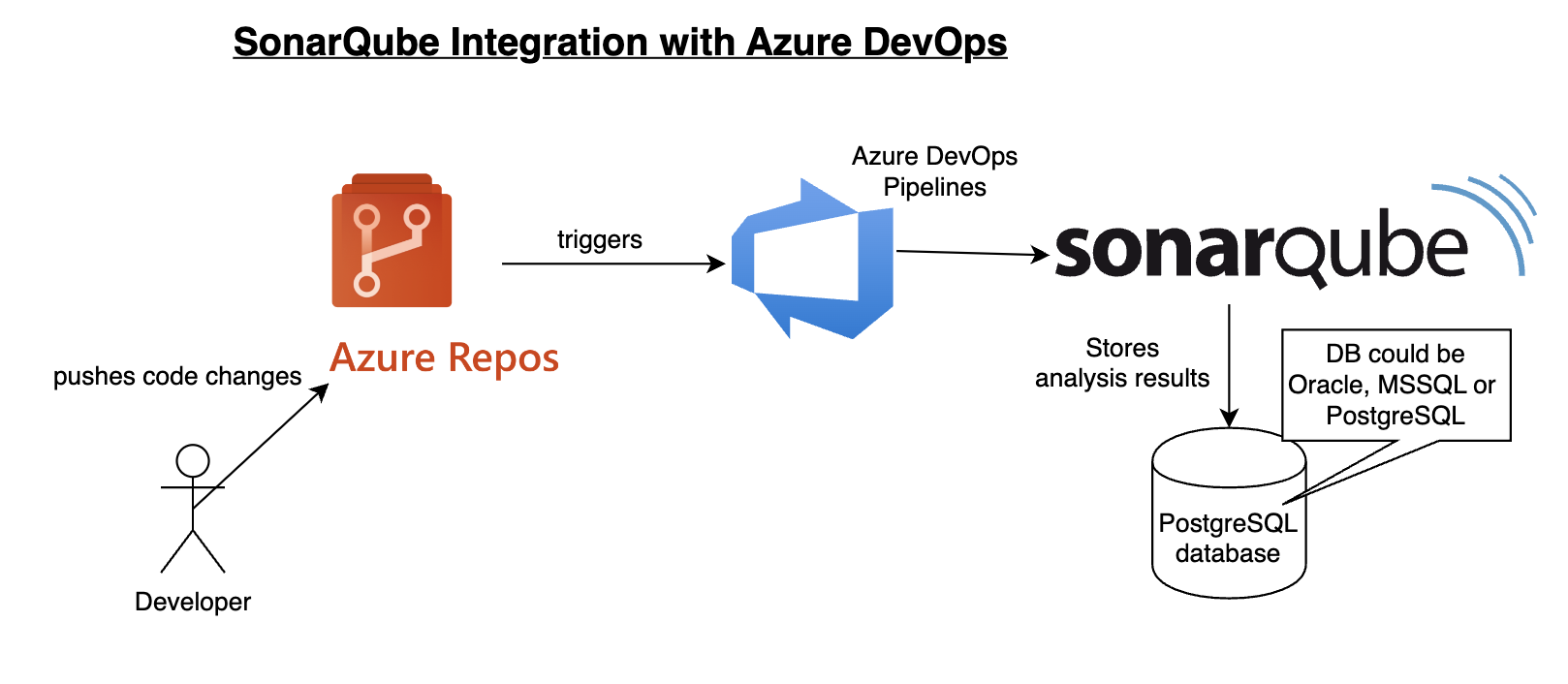
How to Create Azure YAML build pipeline for SonarQube Code Scan | Automate Code Scan using SonarQube in Azure Build YAML Pipelines

Please find steps below for integrating SonarQube with Azure DevOps, Previously known as Visual Studio Team Services:


Pre-requisites:

https://marketplace.visualstudio.com/acquisition?itemName=SonarSource.sonarqube


Once added SonarQube plug-in, click on proceed to Organization..

How to integrate SonarQube with Azure DevOps:

Create Token in SonarQube to authenticate with Azure DevOps
You need to login to SonarQube using your admin password. admin/admin123 and click on Admin on your top side.
Click on My Account, Security. 
Under Tokens, Give some value for token name and choose Global analysis token, click on generate Tokens. Copy the token value generated.


Create Service Connections in Azure DevOps 

Login to Azure DevOps. Select your project dashboard.


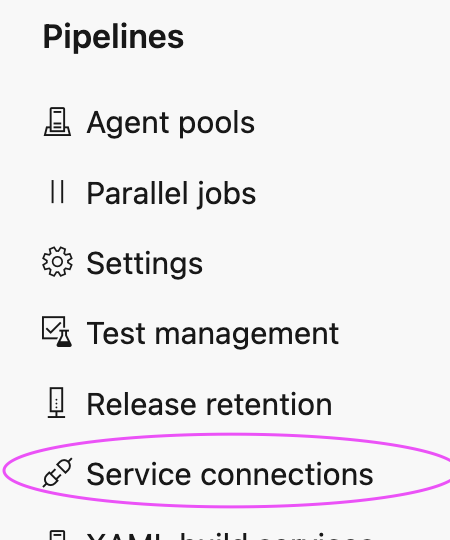
Click on Project settings --> Service connections


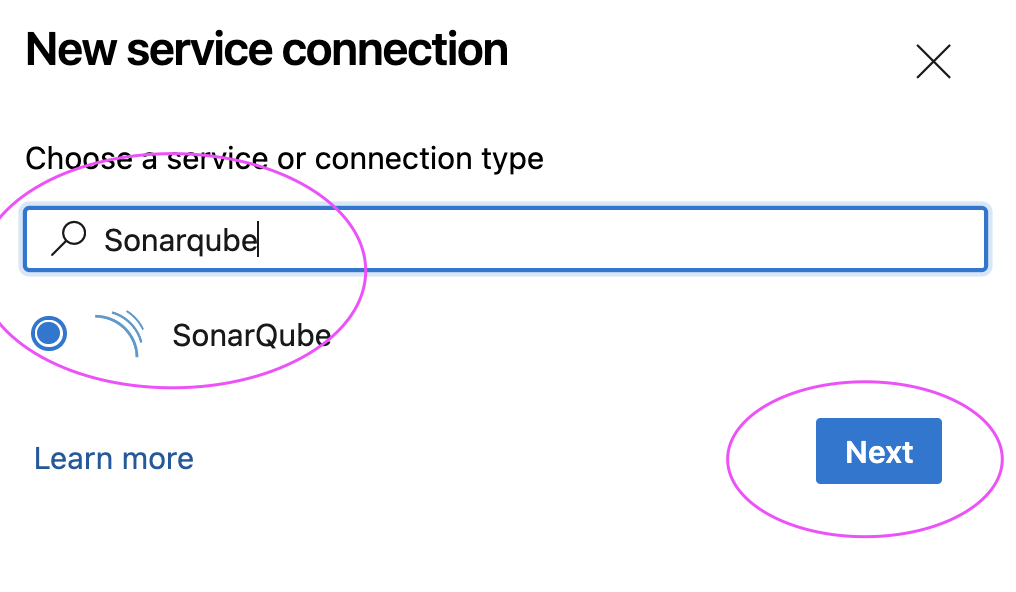
click on New service connection

Type SonarQube and Click Next

Enter SonarQube server url and enter Token created 
Give name for service connection and select Grant access permission to all pipelines.
Click on Save.

Create a YAML Build Pipeline in Azure DevOps

1. Login to Azure DevOps. Go to Azure Pipelines. Click on create a new pipeline
2. Choose Azure Repos Git as our Java Web App is configured in Azure Repos
3. Choose mySonarProject as repo
4. Click on Maven
5. Now click on Show Assistant
6. Type SonarQube and select Prepare Analysis configuration task


Select SonarQube from dropdown
Choose Integrate with Maven or Gradle, click on Add
7. Now Modify path of Pom.xml to MyWebApp/pom.xml
8. Change jdkVersionOption to 1.11
9. change maven goal to install sonar:sonar


10. Now click on Save and Run pipeline.
11. Now login to SonarQube dashboard, click on Projects to the code analysis report