Showing posts with label Kubernetes. Show all posts

Thursday, June 15, 2023

How to Deploy Springboot Microservices App into AKS cluster using Jenkins Pipeline and Helm | Deploy Microservices into AKS cluster using Helm Charts and Jenkins Pipeline

We are going to learn how to Automate build and deploy of Springboot Microservices App into Azure Kubernetes Cluster(AKS) using Helm and Jenkins pipeline.


Sample springboot App Code:

I have created a sample Springboot App setup in GitHub. Click here to access code base in GitHub. 

Jenkins pipeline will:

- Automate maven build(jar) using Jenkins
- Automate Docker image creation
- Automate Docker image upload into Azure container registry
- Automate Springboot docker container Deployments to Azure Kubernetes Cluster using Helm charts


Pre-requisites:
2.  Install Docker in Jenkins and Jenkins have proper permission to perform Docker builds
3. Install Azure CLI on your Jenkins machine. (We will be creating AKS cluster from Jenkins machine running in Azure Cloud)
4. Helm installed on Jenkins instance
5. Install Kubectl on Jenkins instance
6. AKS cluster needs to be up running. You can create AKS cluster, ACR Repo using shell script provided in my website.
7. Make sure to Install Docker, Docker pipeline 


8. ACR is also setup in Azure cloud. 
10. Dockerfile created along with the application source code for springboot App.

The Code for this video is here:

Implementation steps:

  1. Create a resource group, AKS cluster and Azure container registry 
  2. Provide pull access for AKS to pull image from ACR 
  3. Create a namespace for helm deployment
  4. Create a helm chart for spring boot app
  5. Create a Jenkins pipeline with below stages:
    • checkout
    • Build Jar
    • Build docker image
    • Upload image to ACR
    • Deploy to AKS using helm
  6. Run the pipeline to deploy springboot app into AKS
  7. Verify deployments in the namespace in AKS
  8. Access the app in the browser
Create AKS cluster from Jenkins Virtual machine
Login to Jenkins virtual machine. switch as jenkins user
sudo su - jenkins

Authenticate to Azure Cloud by typing:
az login


Now to the browser, type https://microsoft.com/devicelogin
enter the code as received from previous step:

Enter your microsoft credentials, click continue per below screen:

You will be shown below screen:

 
Create a shell script based on the script provided here

vi create-aks.sh
copy and paste entire script provided in this link.

Execute shell script to create the following in Azure clid:
  • Resource group
  • AKS cluster
  • ACR repo
  • provide pull access to AKS for pulling docker image from ACR
  • namespace in AKS cluster for deploying our springboot app
sh create-aks.sh
This will take 2 to 5 mins to create the resources in Azure cloud.

Make sure cluster is up and running with worker nodes
kubectl get nodes


Create Helm chart using helm command
Go to your root of repo where you have source code for your springboot application. Create helm chart by executing below command:

helm create mychart
tree mychart
Execute the above command to see the files created.


Add Docker image details to download from ECR before deploying to EKS cluster
open mychart/values.yaml. change per below values:

image:
repository: myacrrepo531.azurecr.io/myacrrepo531
tag: ""


Enter service type as LoadBalancer
And also
open mychart/templates/deployment.yaml and change containerPort to 8080


Save the files, commit and push into repo.
Step # 1 - Create Maven3 variable under Global tool configuration in Jenkins
Make sure you create Maven3 variable under Global tool configuration. 


Step #2 - Create Credentials to connect to ACR from Jenkins

Go to Azure Portal console, go to container registry
Settings--> Access keys
Get the username and password 
Go to Jenkins-> Manage Jenkins. Create credentials.


Enter ID as ACR and enter some text for description and Save.


Step # 3 - Create a pipeline in Jenkins
Create a new pipeline job.

Step # 4 - Copy the pipeline code from below
Make sure you change values as per your settings highlighted in yellow below:

pipeline {
  tools {
        maven 'Maven3'
    }
    agent any
        environment {
        //once you create ACR in Azure cloud, use that here
        registryName = "myacrrepo531"
        //- update your credentials ID after creating credentials for connecting to ACR
        registryCredential = 'ACR'
        dockerImage = ''
        registryUrl = 'myacrrepo531.azurecr.io'
    }
    
    stages {
        stage('checkout') {
            steps {
                checkout([$class: 'GitSCM', branches: [[name: '*/master']], extensions: [], userRemoteConfigs: [[url: 'check_out_from_your_repo_after_forking_my_repo']]])
            }
        }
        
        stage ('Build Jar') {
        steps {
            sh 'mvn clean install'           
        }
     }
     
    stage ('Build Docker image') {
        steps {
                script {
                    dockerImage = docker.build registryName
                }
            }
        }
        
    // Uploading Docker images into ACR
        stage('Upload Image to ACR') {
         steps{   
             script {
                docker.withRegistry( "http://${registryUrl}", registryCredential ) {
                dockerImage.push("$BUILD_NUMBER")
                }
            }
          }
        }
        
        stage ('Helm Deploy') {
          steps {
            script {
                sh "helm upgrade first --install mychart --namespace helm-deployment --set image.tag=$BUILD_NUMBER"
                }
            }
        }
    }
}

Step # 5 - Build the pipeline

Step # 6 - Verify deployments in AKS
Execute the below command to list the helm deployments:
helm ls -n helm-deployment


kubectl get pods -n helm-deployment

kubectl get services -n helm-deployment

Steps # 7 - Access Springboot App Deployed in AKS cluster
Once deployment is successful, go to browser and enter above load balancer URL mentioned above

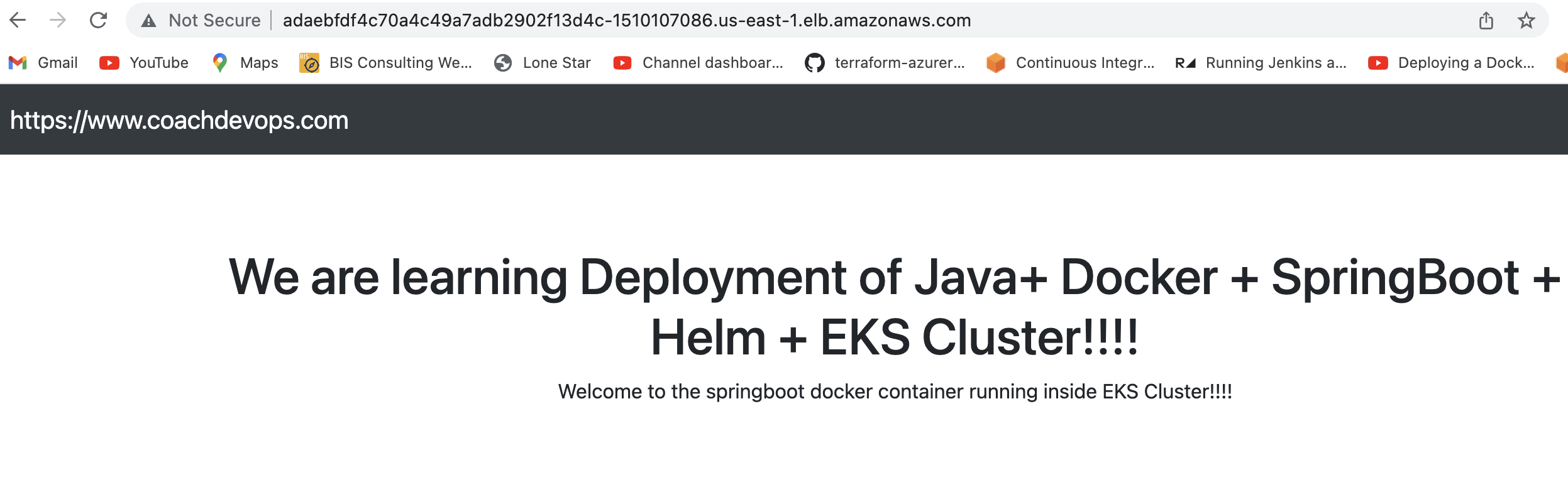
You should see page like below:

Clean up the Cluster:

To avoid charges from Azure, you should clean up unneeded resources. When the cluster is no longer needed, use the az group delete command to remove the resource group, container service, and all related resources. 

az group delete --name resource-group-name --yes --no-wait


Watch steps in YouTube Channel:

Friday, May 19, 2023

How to Deploy Springboot Microservices App into EKS cluster using Jenkins Pipeline and Helm | Deploy Microservices into EKS cluster using Helm and Jenkins Pipeline

We are going to learn how to automate build and deployment of Springboot Microservices Docker Container into Elastic Kubernetes Cluster(EKS) using Helm and Jenkins pipeline.

What is Helm?

Helm is a package manager for Kubernetes. Helm is the K8s equivalent of yum or apt. It accomplishes the same goals as Linux system package managers like APT or YUM: managing the installation of applications and dependencies behind the scenes and hiding the complexity from the user.

To learn more about Helm, please click here.

Sample springboot App Code:

I have created a sample Springboot App setup in GitHub. Click here to access code base in GitHub. 

Jenkins pipeline will:

- Automate maven build(jar) using Jenkins
- Automate Docker image creation
- Automate Docker image upload into Elastic container registry(ECR)
- Automate Springboot docker container deployments into Elastic Kubernetes Cluster using Helm charts


Pre-requisites:
1. EKS cluster needs to be up running. Click here to learn how to create Amazon EKS cluster.
2. Jenkins instance is up and running
3. Install AWS CLI on Jenkins instance
4. Helm installed on Jenkins instance
5. Install 
6. Install eksctl on Jenkins instance
7. Install Docker in Jenkins and Jenkins have proper permission to perform Docker builds
8. Make sure to Install Docker, Docker pipeline 


10. Dockerfile created along with the application source code for springboot App.
11. Namespace created in EKS cluster

The Code for this video is here:

Create Helm chart using helm command
Go to your root of repo where you have source code for your springboot application. Create helm chart by executing below command:

helm create mychart
tree mychart
Execute the above command to see the files created.


Add Docker image details to download from ECR before deploying to EKS cluster
open mychart/values.yaml.


Enter service type as LoadBalancer
And also
open mychart/templates/deployment.yaml and change containerPort to 8080


Save the files, commit and push into repo.

Step # 1 - Create Maven3 variable under Global tool configuration in Jenkins
Make sure you create Maven3 variable under Global tool configuration. 


Step #2 - Create Credentials for connecting to EKS cluster using Kubeconfig
Go to Jenkins UI, click on Credentials -->


Click on Global credentials
Click on Add Credentials

use secret file from drop down.

you should see the nodes running in EKS cluster.

kubectl get nodes

Execute the below command to get kubeconfig info, copy the entire content of the file:
cat ~/.kube/config


Open your text editor or notepad, copy and paste the entire content and save in a file.
We will upload this file.

Enter ID as K8S and choose File and upload the file and save.


Step # 3 - Create a namespace in EKS
kubectl create ns helm-deployment

Step # 4 - Create a pipeline in Jenkins
Create a new pipeline job.

Step # 5 - Copy the pipeline code from below
Make sure you change below red marked values as per your settings highlighted in yellow below:

pipeline {
   tools {
        maven 'Maven3'
    }
    agent any
    environment {
        registry = "account_id.dkr.ecr.us-east-1.amazonaws.com/my-docker-repo"
    }
   
    stages {
        stage('Cloning Git') {
            steps {
                checkout([$class: 'GitSCM', branches: [[name: '*/master']], doGenerateSubmoduleConfigurations: false, extensions: [], submoduleCfg: [], userRemoteConfigs: [[credentialsId: '', url: 'https://github.com/akannan1087/docker-spring-boot']]])     
            }
        }
      stage ('Build') {
          steps {
            sh 'mvn clean install'           
            }
      }
    // Building Docker images
    stage('Building image') {
      steps{
        script {
          dockerImage = docker.build registry 
          dockerImage.tag("$BUILD_NUMBER")
        }
      }
    }
   
    // Uploading Docker images into AWS ECR
    stage('Pushing to ECR') {
     steps{  
         script {
                sh 'aws ecr get-login-password --region us-east-1 | docker login --username AWS --password-stdin account_id.dkr.ecr.us-east-1.amazonaws.com'
                sh 'docker push account_id.dkr.ecr.us-east-1.amazonaws.com/my-docker-repo:$BUILD_NUMBER'
         }
        }
      }
        stage ('Helm Deploy') {
          steps {
            script {
                sh "helm upgrade first --install mychart --namespace helm-deployment --set image.tag=$BUILD_NUMBER"
                }
            }
        }
    }
}

Step # 6 - Build the pipeline


Step # 7 - Verify deployments in EKS
Execute the below command to list the helm deployments:
helm ls -n helm-deployment


kubectl get pods -n helm-deployment

kubectl get services -n helm-deployment

Steps # 8 - Access Springboot App Deployed in EKS cluster
Once deployment is successful, go to browser and enter above load balancer URL mentioned above

You should see page like below:

Cleanup EKS Cluster using eksctl
To avoid charges from AWS, you should clean up resources. 

eksctl delete cluster --name demo-eks --region us-east-1


Watch steps in Youtube channel:

Thursday, May 4, 2023

How to Deploy Springboot Microservices into AKS cluster using Helm and Azure Pipelines | Deploy Docker Containers into AKS cluster using Azure Pipelines | Deploy Microservices into AKS cluster using Helm and Azure Pipelines

We are going to learn how to deploy Springboot Microservices Docker container into Azure Kubernetes Cluster(AKS) using Helm and Azure pipelines. 

Sample springboot App Code:

I have created a sample Springboot App setup in GitHub. Click here to access code base in GitHub.

Watch steps in YouTube channel:

What is Helm?

Helm is a package manager for Kubernetes. Helm is the K8s equivalent of yum or apt. It accomplishes the same goals as Linux system package managers like APT or YUM: managing the installation of applications and dependencies behind the scenes and hiding the complexity from the user.

Helm Charts


Helm uses a packaging format called Charts. A Helm Chart is a collection of files that describe a set of Kubernetes resources. Helm Charts helps you define, install, and upgrade even the most complex Kubernetes application. Charts are easy to create, version, share, and publish.

Implementation steps:

  1. Create a resource group, AKS cluster and Azure container registry 
  2. Provide pull access for AKS to pull image from ACR 
  3. Create a namespace for helm deployment
  4. Create a helm chart for spring boot app
  5. Create a build pipeline to automate docker image
  6. Customize pipeline with helm package tasks
  7. Create a release pipeline
  8. Customize pipeline with helm upgrade tasks 
  9. Run the pipeline to deploy springboot app into AKS
  10. Verify deployments in the namespace in AKS
  11. Use kubectl port forward to access app locally
  12. Access the app in the browser
Pre-requisites:
Create Helm chart using helm
helm create mychart
tree mychart
Execute the above command to see the files created.


Add Docker image details to download from ACR before deploying to AKS cluster
open mychart/values.yaml

image:
repository: myacrrepo531.azurecr.io/akannan1087/docker-spring-boot
tag: ""

open mychart/templates/deployment.yaml and change containerPort to 8080


Save the files into SCM you are using.

Make sure worker nodes are running
kubectl get nodes

Pipeline Implementation Steps:

Part 1 - Create Azure Build pipeline for building Docker image, uploading image into ACR and packaging helm chart.
Part 2 - Create Azure Release pipeline for deploying Springboot Docker containers into AKS using helm upgrade task.
 
Part 1 - How to create a Azure Build Pipeline

1. Login into your Azure DevOps dashboard
2. Click on Pipelines.

3. Click on New Pipeline

4. Click on use the classic editor
Enter your repo name and branch name where you have stored your source code along with Dockerfile:


Click on Continue. Now choose the template by typing Helm, Select Azure Kubernetes service and click Apply.


Now pipeline is created with six tasks already. We need to start customizing the pipeline:
Select Ubuntu as build agent from Agent specification drop down, avoid Windows server as build agent.


Let's also add Maven build task for building the JAR file.
Click on + icon and type Maven. this should be the first task.
And then enter maven goal as package


Let's modify Build an image task.


Select Push an image task


Leave Install Helm Task as it is, we need that task to install Helm on build agent

Remove helm init task by selecting remove selected task

Customize helm package task, select Chart Path by clicking ... dots

Choose the folder where you have helm chart files, select OK


Leave Publish artifact task as it is.


Now click Save + Queue and run to start Building the pipeline


Check build output..


Once the build is completed, you should be able to see the Docker image in Azure Portal under Resource Group, ACR repo name --> Repositories


Part 2  - How to Create Release pipeline for deploying Springboot Microservices containers into AKS Cluster

Go to Pipelines --> Click on Releases --> New Release pipeline


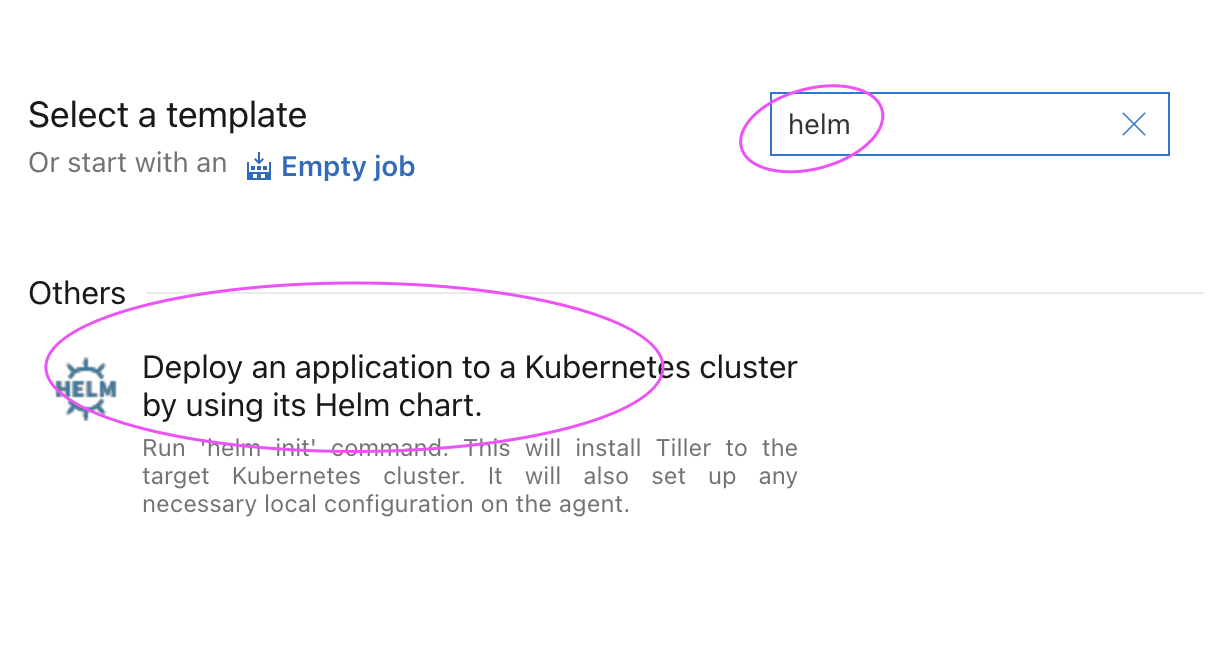
Click on Stage 1 and choose a template by typing helm
and choose Deploy an application to K8S cluster using helm chart


Change the stage name to Deploy to AKS


Now click on Add an artifact


Select the Build pipeline and click on the latest version

Now click on Deploy to AKS stage
Click on Deploy to AKS 
Enter right value for Azure subscription, Resource group and AKS Cluster by selecting from down down.


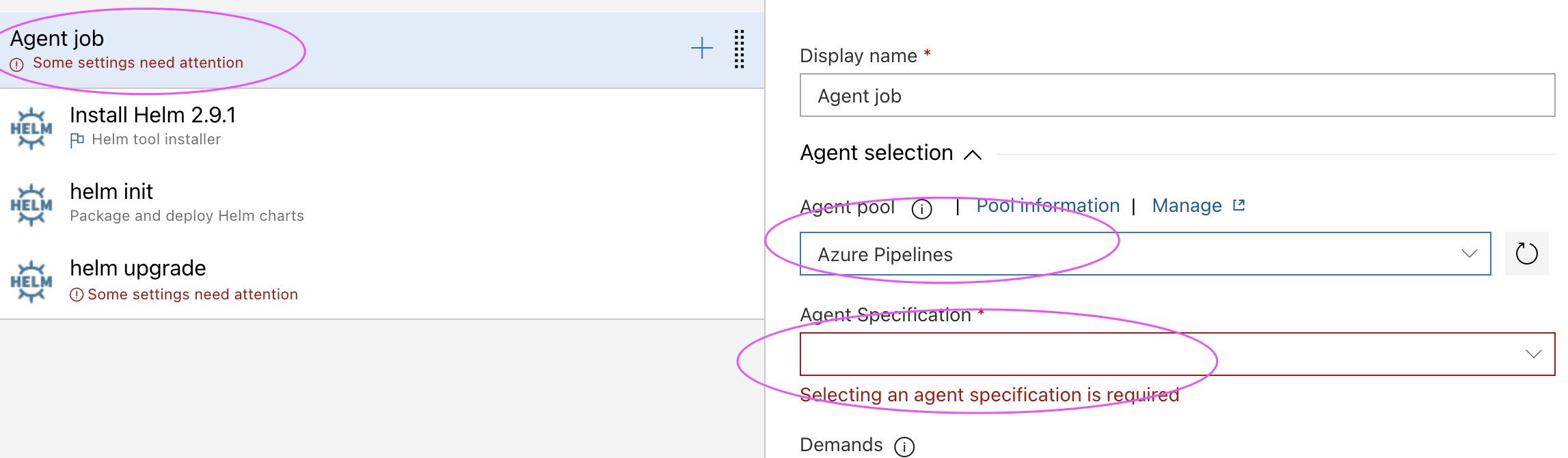
Now click on the Agent Job, and select Azure pipelines and choose Ubutu as Build agent, avoid windows agents.

Leave install Helm 2.9.1 task
make sure check for latest version of Helm. this will install latest version of Helm which is 3.x


Remove helm init task by selecting remove selected task

Let's start customizing helm upgrade task. Enter helm-deployment as namespace, chart type as File path and click on three dots.


choose the package mychart-0.1.0.tgz and click ok.


Enter first as release name
enter below values for for set values:
image.tag=$(Build.BuildId)


Now click on Save.

Optional step - Enable Continuous Deploy Trigger

This will deploy microservices into AKS cluster for every new build in build pipeline.


Click on Create a release

and then click Create 


Click on Release number to see the output


Click on Stage to see the logs
Click on Logs, you will see the following tasks are in green to confirm Deployment was successful.


Let's check if deployment created any pods in helm-deployment namespace.

How to access Springboot Application using port forward locally?

kubectl get deployments -n helm-deployment 

kubectl get pod-n helm-deployment 

Get the pod name and use port forward to access locally
kubectl port-forward first-springboot-pod_name 8080 -n helm-deployment


If you see any errors after deploying the pods, you can check the pod logs.
kubectl describe pod <pod_name>  -n helm-deployment 

Go to the browser enter http://localhost:8080
You should see below web page.

Clean up Resources

Let us see how to clean up the resources that were created. We can use az group delete command to remove the resource group, AKS cluster, and all related resources. 

az group delete --name aks-rg --yes --no-wait