Showing posts with label Slack. Show all posts

Thursday, March 7, 2024

How to Integrate Slack with GitHub Actions | Slack Integration with GitHub Actions| Send Push notifications to Slack GitHub Actions

Integrating Slack with GitHub Actions for sending Notifications


Pre-requisites:

How to integrate Slack with GitHub Actions

We will be using slack GitHub Action Slack integration action for posting messages to Slack channel from GitHub Actions.

We will be following below steps:

1. Create a new App in https://api.slack.com/apps
2. Select workspace in the app
3.Select incoming webhooks
4. Activate incoming webhook
5. Add new webhook integration
6. Select channel, Allow
7. Copy the webhook url

Create App from scratch


Enter App name and pick a workspace
Click on incoming webhooks
Activate incoming webhooks, click on Add new webhook to workspace

Select the channel where you want to send notfications

Copy webhook url


Add Slack Webhook URL as Secret in GitHub Actions
Go to your GitHub Repo --> Settings --> 

Click on Secrets and Variables under Security in left nav 
Click new Repository Secret
Add SLACK_WEBHOOK_URL with value


Create GitHub Actions CICD workflow yaml:

Go to GitHub repo where your Java project is, create a new file:

.github/workflows/cicd.yml


name: cicd-workflow with slack integration
on:
  push:
    branches: [ "master" ]
jobs:
  job1:
    runs-on: ubuntu-latest
    env:
      SLACK_WEBHOOK_URL: ${{ secrets.SLACK_WEBHOOK_URL }}
    steps:
    - uses: act10ns/slack@v2
      with:
        status: starting
        channel: '#mar-2024-weekend-batch'
        message: Starting Docker Build image...
      if: always()
    - uses: actions/checkout@v3
    - name: Build Docker image
      run: |
        docker build -t my-docker-repo .
    - uses: act10ns/slack@v2
      with:
        channel: '#mar-2024-weekday-batch'
        status: ${{ job.status }}
        steps: ${{ toJson(steps) }}
      if: always()


Watch Steps in YouTube channel:

Thursday, November 19, 2020

Slack Azure DevOps Integration | How to Integrate Slack with Azure DevOps | Send push notifications from Azure pipelines to Slack

Slack is popular collaboration tool used at work by many companies. Slack can be integrated with CI tools such as Jenkins, Azure DevOps(VSTS). We will see how to integrate with Azure Build pipelines. 

Pre-requisites:
1. Azure pipelines setup
2. Slack channel setup
 
Azure DevOps & Slack integration steps
 
1. Go to slack.com and sign in to workspace.
2. Go to channel where you would like to receive push notification from Azure DevOps. Click on more and Add apps


3. Add Visual Studio Team Services App

4. Add Configuration

5.  And then select channel to post notification and add the channel

6. In Azure DevOps Dashboard, click on Project settings.
7. Click on Service Hooks tab and then click create subscriptions button to add a new service hook.


8. Select Slack from the list of services, and press the Next button.


9. On the Trigger screen, choose the event that you’d like to trigger the notification, and add any filters. Press the Next button to continue.


10. On the Action screen, add the URL as the Slack Webhook URL and press Finish when you are done.


Now whenever Azure pipelines runs any builds, it will send push notifications to the Slack channel. 

Please watch the above steps in YouTube channel:

Saturday, April 18, 2020

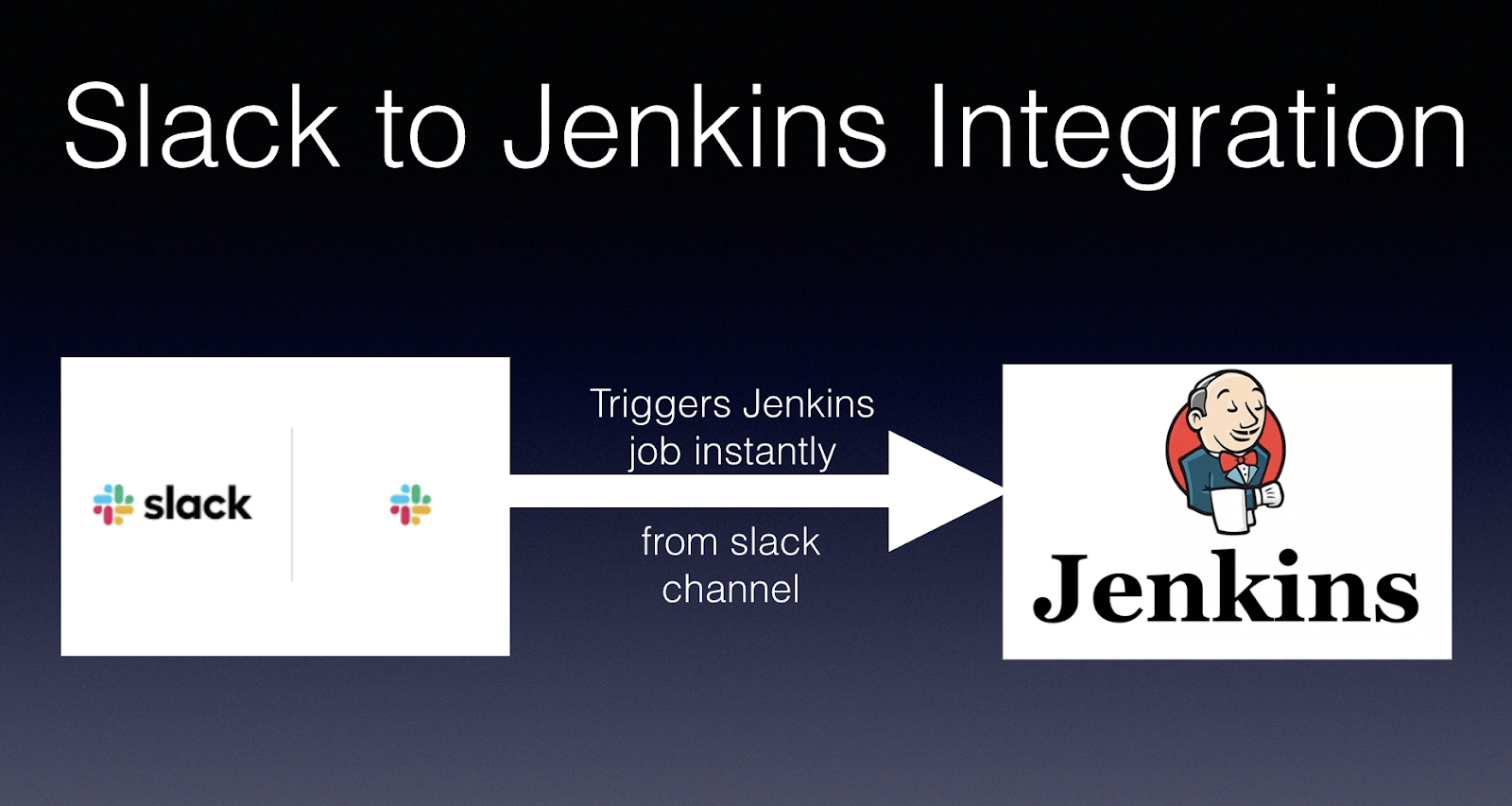
Trigger Jenkins Job from Slack - How to Trigger Jenkins Build Job from Slack

Jenkins job can be triggered in many ways using poll SCM, webhooks. Well, you can also trigger a Jenkins job from Slack as well.  Let us see how to achieve that.


Pre-requistes:
1. Install build authorization token root plug-in under Manager Jenkins --> Manage Plug-ins
2. Make sure you have already created a channel in Slack.

Now let us look at the steps on how to trigger Jenkins Job from Slack channel:

Steps in Jenkins:

1. Go to Jenkins --> Click on the Job you would like to trigger from Slack --> Configure
Go to build triggers section.

We will be using the following URL to trigger builds from Slack
http://jenkins_dns_name/job/jobName/build?token=myToken

2. Go to Manage Jenkins --> Configure Global security, click on Allow anonymous read only access.
Apply, Save.

Steps in Slack:

1. Go to the channel from where you would like to trigger builds.
2. Channel settings --> Click on More --> Click Add apps
Type slash commands and add it

Click on view in app directory

Click on Add to Slack

Enter a command - single word something like /build (it should be one word no spaces or characters)

Click on Add Slash command integration
Enter Jenkins URL, like mentioned above -
http://jenkins_dns_name/job/jobName/build?token=myToken

Method as GET


and scroll down click on the check box like below

And click Save Integration

Go to channel, enter the command as shown below:
/build

and press enter

Now your Jenkins job should run instantly in Jenkins. 

You can watch this steps in my YouTube channel as well:

Thursday, May 17, 2018

Jenkins Slack Integration - Jenkins push notifications to Slack Channel - How to integrate Jenkins and Slack - Slack Jenkins Integration

How to integrate Slack with Jenkins and Send push notifications from Jenkins to Slack? You need to install slack notifications plug-in in Jenkins.


Pre-requisites:

Steps to integrate Slack with Jenkins:

1. Go to www.slack.com and signup with your email, create your workspace.
2. Create a channel in Slack. Give any name.
3. Go to Channel --> Click on channel name --> Click Integrations --> Click Add an app


4. enter Jenkins CI and choose that.


5. Click on Add configuration
6. Add Jenkins CI configuration and select the channel from the drop down.


7. once you added, you will see the below page:


8. Now navigate to Jenkins, Manage Jenkins --> Configure System. Under Global Slack notifier settings. Enter the Team Subdomain value as workspace. Also provide channel name based on what you created. Also provide the token info as well


Token info can be entered by click on Add credentials, Choose secret text drop down and enter token in password text box.

 
9. Now to your Job in Jenkins, Click on Configure.  Click on add post build action. select desired settings. 

10. Click on Apply, and Save

11. Click on Build Now, Now you will see results in Slack channel.


You can watch the steps in my YouTube channel as well: